Add Page
This feature creates a new page for your site and prompts you for the information required to fill it. At this point you will be able to compose the text for the page and decide on the general layout of items that will be put on the page, but placement of products on the page and creation of links to other pages in your site will occur afterward. (See the assign items button.) Remember that if you select alignment (width, columns, and other formatting for the page), only the products and links will appear formatted, not the text that you are entering. Your text can be formatted any way you like using HTML tags. As always, if there are any fields that you do not understand, leave them in the default setting.
Page Name - This is the name of the page that will appear at the top of the page and at the top of the browser window when viewed on line. This is also the name of the record in the database (the list of pages), so even if you have four pages of T-shirts, you may want to name the pages "T-Shirts Page One" and "T-Shirts Page Two," so you can differentiate.
Display Name on Page - If you have a banner graphic for the page that contains the page's name, you will probably want to uncheck the "display name" box. You will still need to give the page a name, so it appears in the database, but the name will not appear on the page under your banner graphic.
Banner Graphic - Select the graphic that you want to appear on the top of this page. It will appear above all the text on the page. If you want to insert an image anywhere else on the page, you can use an HTML tag. Use the radio button to select the method for finding your image.
Display Banner Graphic on Page - This feature is useful if you would like to temporarily remove the banner graphic from the page, but not have to find it in the list when you want to put it back.
Text1 - Text entered here will appear immediately below the graphic and page name, but above any products or page links. You can enter any combination of text and HTML into this field.
Text2 - Text entered here will appear immediately below the products and page links, but above universal page footer (if there is one). You can enter any combination of text and HTML into this field.
Text3 - With the default template, text entered here will appear immediately below the universal page footer (if there is one). You can enter any combination of text and HTML into this field. Note: Some page templates, if selected, will display Text3 text in other places.
Link Info - If other pages in the site are going to display links to this page (the one you're editing now), then you need to provide link information. The only page that might be left without link information is the Main Page, but you may want to consider linking every page back to the main page too. Remember that you are also free to use custom HTML to make links to your pages, if you do not like the way that they are displayed by default.
Link Name - This will usually be the same as the Page Name you entered above. This is the text that will appear on the referring page. It will appear "hot," that is, clicking on the text will take the browser to the new page. You may decide to display either a text link, a graphic link, or both.
Link Graphic - This is a clickable graphic that appears on the referring page. Clicking this graphic brings up the page, just as clicking the product name does. You may decide to display either a text link, a graphic link, or both. Use the radio button to select the method for finding your image.
Link Text - This is text that accompanies the link name and/or graphic on the referring page. It is optional.
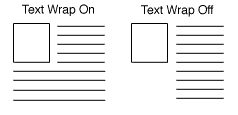
Link Text Wrap - f this menu is set to "on," and you have both a graphic and text for your page link, the text will wrap around under the image, otherwise, it will continue in a straight column. You will only need to set this menu if your link contains a lot of text.
Link Location - Every page you have created will appear in this section with a check box next to it. Every page checked will display a link to this page. For example, if the page you are editing now is "silverware," and you check none of these boxes, no links to the silverware page will appear in the site. If you check all the boxes, it will appear on all the pages.
Page Template - There are several page templates to choose from to customize your site's look and feel. There are also several product templates. See the page templates documentation for a description of the different page templates.
Lay Out Items on Page - These options give you control over formatting the items (products and links to other pages) that appear on your page. Remember that the text you entered in the fields above will not be subject to this formatting. If you select two columns, your products will appear in two columns, but your text will appear in one. You can use HTML to format your text if you desire.
Item Alignment - Left-aligned text appears normal, with the text flush to the left side of the page. Right-aligned will make the items flush right. It usually does not look good with text, but if the items are graphics only (links to other pages, all the same width, for example) it looks good. Centered will center the items within the column, and staggered will alternate between left and right alignment.
Columns - Laying out your products or links in two or three columns can be very attractive. Depending on how wide the items are, you can even do more, but remember that not everyone can view the same page width as you. Try to assume that people will be viewing the site on a 14" monitor.
Display Column Borders - Checking this box will create a border around each product and link on your page.
Page Width - Setting the page width to less than 100% will create margins on the page. If it set to 90%, then it will be laid out 5% on one edge, 90% in the middle, and 5% on the other edge. Margins on a page can drastically improve its aesthetic quality.
Display Universal Header - This will place your store's universal header at the top of this page (or down the left, depending on the page template you choose.
Display Universal Footer - This will place your store's universal footer at the bottom this page.
Text Color - This sets the default display of non-link text on a particular page to the color you choose. Be sure to choose a dark color (black is usually best) unless your background is dark, because you want to make sure your site is easy to read. A sample of each color choice can be found here.
Background Color - The entire background of your page will be displayed in the color you choose here, unless you select a background pattern (see below), in which case the pattern will appear instead of the color. Be sure to choose a light color for the background unless you have selected a very light color for your text. A sample of each color choice can be found here.
Link Color - Unvisited links to other sites will appear in the color you select here. A sample of each color choice can be found here.
Visited Link Color - After the link has been clicked on, and the page has been visited, the color of the link will change to the color you select here, to let people keep track of where they've been.
Active Link Color - The color selected here will only be visible at the exact moment they are clicking on the link. It's fun to use a bright color here. It adds pizzazz. A sample of each color choice can be found here.
Background Image - If you have uploaded an image of a textured background to your media directory, you can use that image as a background for your site. Be careful, though, as the image will tile, meaning that it will appear multiple times as a repeating pattern, so it's a good idea to use images that were designed specifically for backgrounds. Use the radio button to select the method for finding your image.
File Name - This setting is optional. Rather than let the system give you the default page file names (page1.html, page2.html, etc.), you can give the page a file name that describes the page's contents. Be sure to put the .html or .htm suffix on the end of the file name, or the page will not display correctly.
Metatags - New in version 3.2 is the ability to tell search engines such as Yahoo! and Excite what the keywords are that they should match to find this page. The Description field is used by many engines as what should be displayed when a search matches this page.
Product Search - New in ShopSite Pro is a product search engine for your site. By checking the Product Search box a field for entering words on which to search will be added to the page. All your products and their descriptions will become searchable by customers.
If you are not finding the help you need, please give detailed feedback.