Installing ShopSite Order Transfer
Installing the ShopSite Order Transfer application is a simple, two-part process. First, you install the software, and then you must grant permissions in QuickBooks® for access to your company file.
System Requirements
ShopSite Order Transfer requires the following additional software to work:
- ShopSite Pro version 7 or later OR ShopSite Manager version 8.0 or later
- Microsoft® Windows® XP or Windows® 2000 Professional
- QuickBooks® Pro or Premier Edition 2003 or later
Install the Software
QuickBooks should already be installed on your computer, and you should have already configured your company in QuickBooks, prior to installing the ShopSite Order Transfer program. When you are ready to install the Order Transfer program, do the following:
- Find the Order Transfer install file (OrderTransferSetup.exe) where you downloaded it on your computer and double-click on the file name to start the installer.
- Click Next on the Welcome screen to proceed to the license agreement.
- Read the license agreement. You must accept the agreement to use the Order Transfer software. Click Yes to accept the terms of the agreement.
- You can accept the default installation directory, or click Browse... to select a different directory. Click Next to continue.
- Click Next to begin the installation.
- The setup program may need to install a support file named QBFC 4.0. If it does, you will see a dialog box saying that the install of QBFC 4.0 has completed. Click Finish to proceed.
- Once the installation is done, click Finish to exit the installer.
Grant Permissions
The first time that you run ShopSite Order Transfer, you must associate it with a specific QuickBooks company file and grant permission for it to access that file.
- Start QuickBooks and open the company file that you plan to use with ShopSite Order Transfer.
- Start ShopSite Order Transfer by double-clicking the program icon on your desktop, or by selecging it from the Programs menu under the Start menu.
- The first time you run Order Transfer, you will see a dialog box to begin the process of granting permissions to the QuickBooks company file. Click OK to proceed.
- QuickBooks will display an Application Certificate for ShopSite Order Transfer:
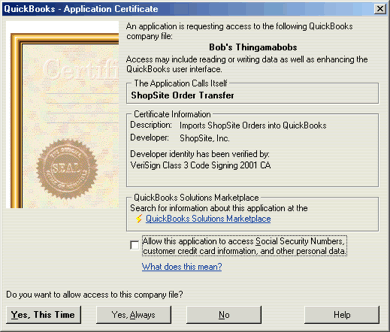
- If you are running QuickBooks 2004 or later and you want to download customer credit card information from ShopSite, check the box that says "Allow this application to access Social Security Numbers, customer credit card information, and other personal data."
- Click the Yes, Always button to grant permanent permission for ShopSite Order Transfer to download information to your company file.
- If you are using QuickBooks 2004 or later, you will see a dialog box telling you that a new item has been added to the File menu to make it easy to start ShopSite Order Transfer. Click OK to continue.
- ShopSite Order Transfer will start and display the opening screen, which shows the company file that is open in QuickBooks:
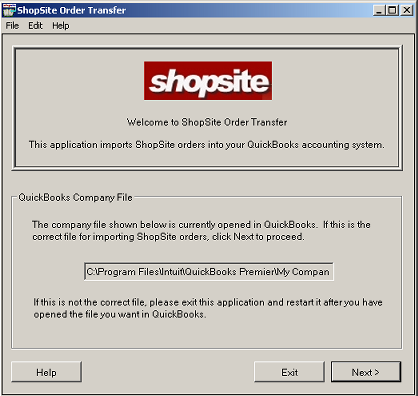
If the correct company file is shown, click Next.
You have now completed installing ShopSite Order Transfer and granting access permission for a company file. Next you need to configure a connection to your ShopSite store, as described in the Web Server Connection help. You will probably also want to configure Preferences, which include accounts and other settings that will be applied to imported orders. Once you have completed the initial settings (which you probably won't have to change again), you'll be ready to download orders.
QuickBooks is a registered trademark and service mark of Intuit Inc. in the United States and other countries. Order Transfer is designed for use with QuickBooks Pro and Premier Edition 2003 or later software only.
