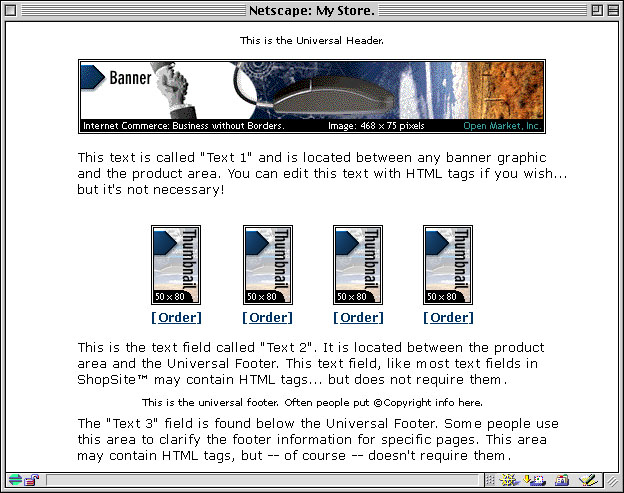
The default template uses a straight-forward "top to bottom" approach. The universal header is placed at the top of the page, followed by the banner graphic and the Text 1 field. Any products and links to other pages appear under the Text 1 field. The Text 2 field is under the links, and the bottom of the page has the universal footer and then the Text 3 field.
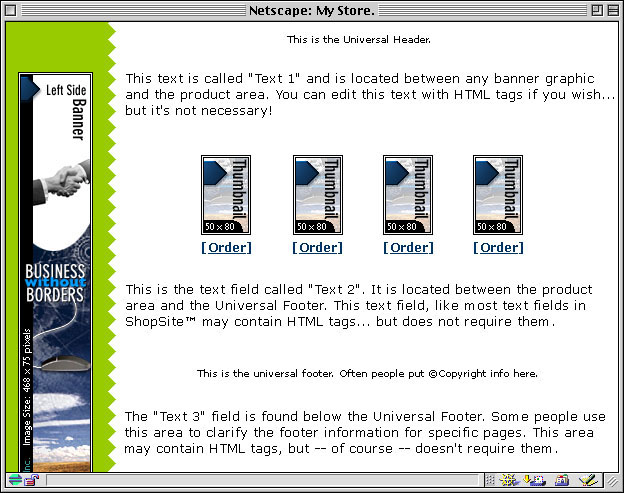
The Graphics Left template is very similar to the default template, except that the banner graphic is displayed at the left side of the page, and all other elements are moved to the right.
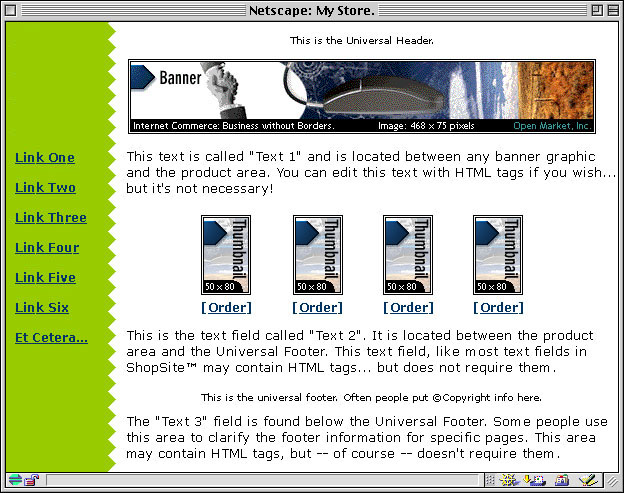
The Links Left template places links to other pages to the left of all of the other elements, creating a left-side navigation bar.
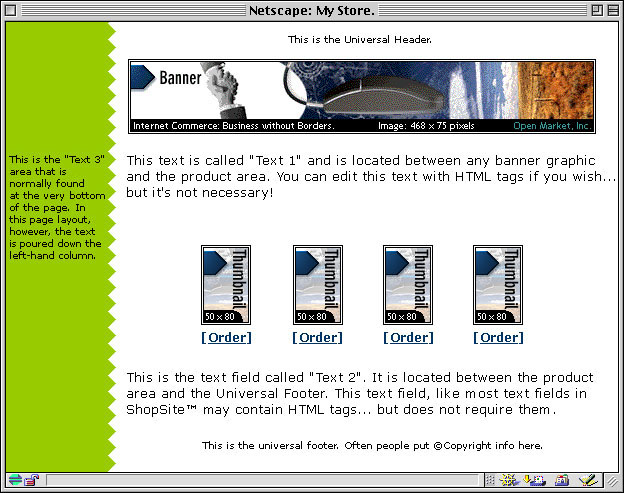
Instead of placing the Text 3 element below the universal footer, the Text 3 Left template places it on the left side of the screen. You can include HTML code within the Text 3 field, thereby creating navigation links to other pages in your store, if desired.
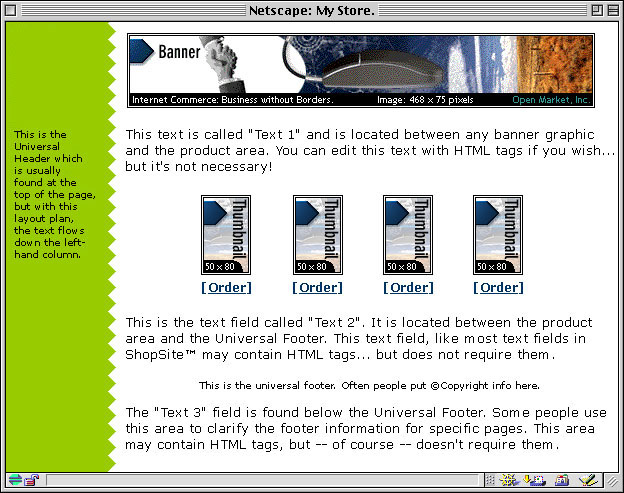
The Universal Header Left template is similar to the Text 3 Left template, except that the universal header is run down the left side of the page instead of the Text 3 element. Though the difference may seem subtle, this template may be a good choice if you want your banner graphic to be at the top of the page, but don't want to waste the universal header field.

A wide vertical stripe of one color runs down the left side of the page in the Lefty theme, containing the page banner graphic and links to other pages in your store, if any. All other page elements are displayed to the right of the stripe.

The Mondrian theme puts a thin border around each page. The page name and banner graphic are put against a colored rectangle just inside the border at the top. All text fields and product information are displayed in a wide column below the page name against a white background. Page links are in a narrow colored column to the right of the product information.

The Matte theme frames all page elements in a two-color border, like the matte on a framed picture.

The Topnotch theme puts a horizontal strip of color across the top of pages, with the page banner graphic in the top right corner and the page name to the left of the graphic. Links to other pages are in a narrow column down the left side of the page, and all product information and text fields, including the page header and footer, are in a wide column that fills the rest of the page.

The Plain theme sets all pages back to the Default Page Template.
