The Power Edit feature is designed to help save time and effort when editing products by only showing the fields you want to make changes to. You can edit any number of products at a time, and you can edit any number of the Information or Layout fields for each of those products. You could, for example, want to change the price and quantity on hand for several products. Rather than having to edit each product individually and scroll through all the information for each product, you can use Power Edit to view only the Price and Quantity On Hand fields for those products, all on one screen.
Name |
This is the name of the product that will appear wherever the product is displayed, and also the name of the product used in the Back Office. You must enter a unique name for the product, although you may toggle whether or not to display the name to customers. |
|
Enter the regular price the product will sell for (in your primary currency). This price will be used in calculating the order total, unless you have the product on sale or if the customer qualifies for quantity pricing. You can toggle whether or not the price is displayed on Store Pages and Product More Info Pages. |
|
If you enter a value here, it will be used to calculate the price of the product when you have it On Sale. You can have ShopSite calculate the sale price as a percent off the regular price by entering the percent off, including a percent sign (%), or you can enter a specific sale price (in your primary currency). |
Taxable |
Leave this box checked to have ShopSite calculate sales tax for this product. If you un-check the box, this product will not be included in sales tax calculations, regardless of any other settings. You can set the tax rates in the Commerce Setup > Sales Tax section. |
SKU |
The Stock Keeping Unit or SKU is a code used to identify billable items. If you have a SKU system, or any other tracking system (UPC, EAN, ISBN, etc.), you can enter the code in this field. The SKU does not appear on pages by default (although there is a toggle to enable that, if you want), but is included in the order information so you can use it for fulfillment. |
|
This is the image that will appear next to or above the product information (the arrangement depends on which product template you choose). See the Image Tool help for more information on selecting an image. |
Product Image Size |
Select one of the available Image Sizes to use for the product image. |
Product Description |
You can use this field to provide customers with important information about your product. Provide a brief descriptive summary including highlights about the product, and make sure to mention any significant features your customers will want to know about. You may want to include HTML content (such as a key feature list) to improve the presentation of the information. It is usually a good idea to keep the Product Description relatively short so it doesn't take up too much of the page. You can use a More Info Page to provide a more extensive description of the product. |
QB Import |
If you download order information into QuickBooks, use this field to set an item type and Sales Account, or leave it blank to not download any information about this product from ShopSite. (When you download order information into QuickBooks, ShopSite also includes information about the products in those orders.) If you don’t select an item type, QuickBooks will automatically assign it to the Service Item type and you will not be able to change it in QuickBooks. If you are unsure which type to select, choose Non-inventory part item, because QuickBooks allows you to change that type later. |
Weight |
If you are using weight-based shipping (including UPS or FedEx), you must enter the weight for your product here so that ShopSite can calculate shipping costs. Do not specify a unit of measurement (pounds, ounces, kilograms, etc.), but use the same unit of measurement for all products in your store. |
Dimension Options |
If you are using a shipping option that uses specific package sizes as part of the shipping cost calculation (such as UPS, FedEx, or a Custom Shipping Add-On), you may need to specify the dimensions of the package this product will ship in. If you specify a package size here, ShopSite will calculate the shipping costs as if the package were being shipped individually (even if multiple packages could be shipped within a single larger box). You have three options for specifying product package dimensions:
- Select the radio button to Ship by weight only if this product is relatively small and light-weight, and could be shipped in a package with other products in the order. ShopSite will calculate the shipping cost as if all products (up to the specified maximum package weight, if there is one) in an order were being shipped in a single package.
- Select the radio button beside the LxWxH Text Box to specify the dimensions of the package for this product. Use this option if this product will not fit in a standard-size shipping package. Enter each of the package dimensions into the text-box, separated by an x (for example, if the package is 34 inches long, 14 inches wide, and 7 inches high, you would enter 34x14x7).
- Select the radio button beside the Standard Package Pull-down if this product will be individually packaged inside one of your standard package sizes. Use the pull-down menu to select from one of the standard package sizes configured on the shipping configuration screen.
|
No Shipping Charges |
Check this box if you do not want ShopSite to calculate any shipping and handling charges for this product. This feature overrides any other shipping charge configuration for this product. It can be useful for downloadable products and items such as gift certificates. |
Extra Handling Charge |
You can optionally enter an additional handling charge for this product. This is a per-item charge (if this product has a handling charge of $1 and a customer orders 3 of this product, the customer will be charged $3) that will be added to any per-order handling charges configured on the Shipping Configuration screen. |
Shipping Charges |
If you have either Base Shipping or Base Plus Shipping selected in the shipping options, you will see each of the configured shipping methods listed. Enter the shipping charges for each of the methods selected. |
Option Text |
This field allows you to provide a description or instructions for the ordering options pull-down menus. It is displayed directly above the pull-down menus. |
Option Menu Text |
Enter each menu option on a separate line. Leave a blank line to start a new pull-down menu. See the Ordering Options Help for a detailed explanation and examples of how to use this field. To display Ordering Options pull-downs on your Store Pages and Product More Info Pages, you must check the Display Ordering Options checkbox. Selected ordering options are also displayed with the product in the Shopping Cart contents. You can select wether or not customers can change ordering options on the initial Shopping Cart screen by going to the Commerce Setup > Order System > Shopping Cart screen in your Back Office. |
Customer Text Entry Box |
Check this box to include a text-box with the Ordering Options. Customers will be able to enter text (such as initials for a monogram or a special message to be printed on the product) into this box.
If you want the text-box to display on Store Pages and Product More Info Pages, you must check the Display Ordering Options checkbox. The text-box will also be displayed with the product in the Shopping Cart contents. You can select wether or not customers can change the text-box contents on the initial Shopping Cart screen by going to the Commerce Setup > Order System > Shopping Cart screen in your Back Office. |
Product On Pages |
Click on the Select button to open a new window that will allow you to select which Store Pages this product will be displayed on. The top box contains pages that will list this product. To remove a page from the list, select the page(s) and click the Delete button. The page will now be in the lower list, which contains all the pages that do not have this product on them. Select pages from the list and click Add to move the pages to the top list. When you are finished making changes, click on OK to save your changes, or click Cancel to close the window without saving your changes. |
Display More Information Page? |
Check this box to have ShopSite generate a More Info Page for this product. This will cause the Product Name and Product Graphic on Store Pages to become links to the More Info Page. |
More Information Title |
This field sets the HTML Title tag contents, which is displayed in the browser window title bar, for the More Info Page. If this field is empty, most templates will use the Product Name for the title. Do not include HTML tags or reserved characters (&, ", ’, <, >, etc.) in this field. |
More Information Text |
Enter the product information you want to have appear on the More Info Page. You may want to include the Product Description text followed by additional details, or you can make this completely different. You can include HTML content (such as a specification table) to improve the presentation of the information in this field. |
More Information Graphic |
Choose a graphic from the files in your media directory for the More Info Page. See the Image Tool help for more information on selecting an image. |
More Informaion Image Size |
Select one of the available Image Sizes to use for the more info page image. |
More Information Meta:Keywords |
Enter a comma-delimited list of terms that you want search engines to associate with this page. Words or phrases you enter here, along with other page content, are used by Search Engines such as Google, Yahoo, and Ask Jeeves to help people find what they're looking for. You may want to use the same keywords as your Search Keywords. You should try to include any words or phrases customers will use when searching for this product, including alternate names and common misspellings you do not want to include in the product name or description. Do not include HTML tags or reserved characters ( &, ", ’, <, >, etc.) in this field. |
More Information Meta:Description |
Enter a short description that you want search engines to associate with this page. This may be the same as your product description, but should be tailored to optimizing your search engine ranking. Do not include HTML tags or reserved characters (&, ", ’, <, >, etc.) in this field.
Note: |
You can also use this field to insert meta tags and other material, such as META fields or JavaScript code, into the <HEAD> section of the page. First, type in any text that you want within the <META description= > tag and close the tag with ">. Then type in any additional tags or scripts (the field scrolls to hold more lines). Do not put the closing "> at the end of your last tag, as ShopSite will add that automatically. For example, to add a META name tag, you might enter something like this:
This is your description."><META name="your meta tag" content="your content
|
|
File Name |
You may optionally specify a file name to use for the More Information page. Do not use reserved characters (&, ", ’, <, >, etc.) or spaces in the file name. You should also make sure to include the .html or .htm (or another valid filename extension). If you do not specify a name, ShopSite will give it a generic name (such as page1.html). |
Include In Sitemap |
Check the box to include this product More Info Page in your sitemap, then optionally change the priority of the page. |
Use Froogle |
Leave this box checked if you want this product to be included when you submit products to Froogle/Google Base. If you uncheck this box, this product will not be included in submissions. |
Template |
Select which template to use when displaying this product. Product templates determine the order and layout of product information on Store Pages and on Product More Info Pages. See the Product Templates Help for details about how different templates work. This field is set when you pick a theme. Some product templates are designed to be used with a specific Page Template, and may not display information correctly if they are not used together. |
Display Name? |
Leave this box checked to include the Product Name on Store Pages and More Info Pages. |
Display SKU? |
Check this box if you want the Product SKU to be displayed on Store Pages and More Info Pages. |
Display Price? |
Leave this box checked to include the Product Price on Store Pages and More Info Pages. If this box is unchecked, the product will not display price, sale price, or quantity pricing information. |
|
Leave this box checked to put your product on sale, or uncheck the box to sell the product for the regular price. If this box is checked, the sale price will be displayed on Store Pages and More Info Pages, and used to calculate shopping cart totals. With this box unchecked, the sale price will not be displayed or used, regardless of the contents of the On Sale Price field. |
Display Graphic |
Leave this box checked to display the product image on Store Pages and Search Results. This does not affect the More Info Page image. You can select whether or not to display the product image in the Shopping Cart by going to Commerce Setup > Order System > Layout Info. |
|
Check this box to include a field on Store Pages and More Info Pages that allows customers to select how many of this item to add to the shopping cart. Customers can modify the quantity from the initial Shopping Cart Screen as well (unless you have disabled that option on the Commerce Setup > Order System > Shopping Cart screen). |
Display Ordering Options? |
Check this box to display your ordering options on Store Pages and More Info Pages. Customers can also select any configured ordering options on the initial Shopping Cart screen (unless you have disabled that option on the Commerce Setup > Order System > Shopping Cart screen). |
Name Style |
Select the text style to use for the Product Name on Store Pages and More Info Pages. You can pick from Bold, Italic, Typewriter (usually a fixed-width courier font), and Plain. |
Name Size |
Select the font size to use for the Product Name on Store Pages and More Info Pages. You can pick from Big, Small, or Normal. The exact size for each of these options is controlled by the product template you are using. |
Price Style |
Select the text style to use for the Product Price on Store Pages and More Info Pages. You can pick from Bold, Italic, Typewriter (usually a fixed-width courier font), and Plain. |
Price Size |
Select the font size to use for the Product Price on Store Pages and More Info Pages. You can pick from Big, Small, or Normal. The exact size for each of these options is controlled by the product template you are using. |
SKU Style |
Select the text style to use for the SKU on Store Pages and More Info Pages. You can pick from Bold, Italic, Typewriter (usually a fixed-width courier font), and Plain. |
SKU Size |
Select the font size to use for the SKU on Store Pages and More Info Pages. You can pick from Big, Small, or Normal. The exact size for each of these options is controlled by the product template you are using. |
Description Style |
Select the text style to use for the Product Description on Store Pages and the More Info Page Text on More Info Pages. You can pick from Bold, Italic, Typewriter (usually a fixed-width courier font), and Plain. |
Description Size |
Select the font size to use for the Product Description on Store Pages and the More Info Page Text on More Info Pages. You can pick from Big, Small, or Normal. The exact size for each of these options is controlled by the product template you are using. |
Image Alignment |
Select where the Product Image or More Info Page Image will be displayed, relative to other product information. You can pick from Left, Right, or Center. The way this selection affects your product layout depends on your Product Template and your TextWrap setting (below). |
Text Wrap |
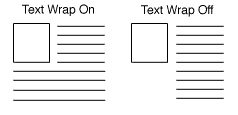
Select whether or not you want your product information to wrap around your product image. If this is set to On, information such as the Name, Price, Description, and Add to Cart button could wrap around the image. If this is set to Off, the product image is set apart from the other product information. How this selection affects your product layout depends on your Product Template and your Image Alignment setting (above). |