Use the Edit Page Layout feature to choose how you want an existing page in your store to look, and how the contents of the page should be displayed. You can specify right, left, or center alignment, the number of columns for items on the page, and the colors for text and background.
Consult the list below for explanations of the different fields. If there are any fields that you do not understand, leave the default setting.
Name Toggle |
If you have a banner graphic for the page that contains the page's name, you probably want to uncheck the Name Toggle box. You must still give the page a name so that it appears in the database, but your customers will not see the name on the page under the banner graphic. |
Graphic Toggle |
If you are using a banner graphic on the page, you can use this checkbox to temporarily remove the graphic and not have to find it in the list when you want to put it back. |
Link Text Wrap |
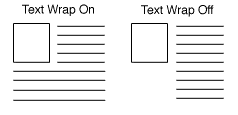
If this option is set to "on," and you have both a graphic and text for your page link, the text will wrap around under the image. Otherwise, it will appear to the right of the image in a straight column. You only need to set this field if your link contains a lot of text.
|
Layout Info
These options give you control over formatting the products and page links that appear on your page.
|
Page Template |
There are several page themes and templates to choose from to customize your store's look and feel. If you have applied a theme to your store, selecting a different template here may give unexpected results. See the Page Templates documentation for a description of the different page themes and templates. There are also several product templates that you can use to control the way that individual products are displayed. |
Item Alignment |
Choose how you would like products and page links aligned in each column. This setting does not affect the Text1, Text2, and Text3 fields. Remember that you can also apply Product Templates to further customize how each product image lines up with the product name, price, and description. |
Columns |
This setting affects the products and may affect the links, but does not affect the Text1, Text2, and Text3 fields. Laying out your products or links in two or three columns is often a good idea, aesthetically. Depending on how wide the items are, you may even be able to fit more columns, but remember that not everyone can view wide pages without scrolling. It is usually safe to design the page to be viewed at 800x600 resolution. |
Column Borders |
Checking this box will create a border around each product and link on your page. |
Page Width |
Setting the page width to less than 100% will create margins on the page. If you set the width to 90%, the page will have a 5% margin on each side, and the contents of the page will be displayed in the remaining 90% in the middle. Margins can improve the aesthetic quality and readability of a page. |
Page Header |
Check this box to place your store's page header at the top of this page (or down the left, depending on the page template you choose). You can edit the page header for your store in the Preferences section of the ShopSite. |
Page Footer |
Check this box to place your store's page footer at the bottom of this page. You can edit the page footer for your store in the Preferences section of the ShopSite. |
Page Colors
The colors you select here will affect the appearance of the specified parts of your store pages. The text box contains the HTML Hex value of the selected color, with the border around the text box displaying that color.To change the selected color, you can either enter or paste a selected HTML Hex value into the text box, or click on the Pick link beside the box to open the visual color selection tool.
The visual color selection tool includes a color wheel depicting a range of available colors, a box displaying the Hex value and color of the currently selected color, and another box displaying the Hex value and color of the color your mouse cursor is currently positioned over. After positioning the mouse cursor over the color you want, click the mouse button to set that as your selected color. Click the Apply button to use the selected color. Once you are finished with the color picker, click on Close to return to the back office. |
Text Color |
This sets the default display of nonlink text to the color you choose. Be sure to choose a dark color (black is usually best) unless your background is dark, so the text on your site is easy to read. |
Background Color |
The entire background of your page will be displayed in the color you choose here, unless you select a background image, in which case the image will appear instead of the color. Be sure to choose a light color for the background, unless you have selected a very light color for your text. |
Link Color |
Unvisited links to other pages and sites will appear in the color you select here. |
Visited Link Color |
After a customer has clicked on a link and visited the page, the color of the link will change to the color you select here, to let customers keep track of where they've been. |
Active Link Color |
The color selected here will be visible when a link is active, meaning when the customer clicks on it. Some templates also set this as the hover color, meaning when the mouse cursor is over the link, but it has not been clicked. Making this a bright, distinctive color is a good way to add a little pizzazz to your site. |
|
If you have uploaded an image of a textured background to your media directory, you can use that image as a background for your site. Be careful, though, as the image will tile, meaning that it will appear multiple times as a repeating pattern, so it's a good idea to use images that were designed specifically for backgrounds. See the Image Tool help for more information on selecting an image. |
Page Arrangement Settings
Use the fields in this section to set the order in which products and page links are displayed on this page.
Note: |
Using the Arrange Items feature to sort the products on this page will override any Page Arrangement Settings you make here and set the Order field back to None.
|
|
Order |
Select either ascending (0-9, a-z) or descending (9-0, z-a) sort order for products and page links, or select None to turn off any special sort order. |
Products Sort Field |
Select to sort products on this page by name, SKU, price, or description. |
Pages Sort Field |
Select to sort links to other pages by page name or link name. |
Products On Top |
Check this box to display products before links on this page. |
Pagination
|
Number of Products per Generated Page |
Enter the maximum numbers of products that you want ShopSite to display on a page. If you assign more than this number of products to this page, ShopSite will automatically generate additional pages as needed. Each page will have navigation links to let customers move between the pages. (You can set the maximum number of pages generated on the Publish screen.) |