Create a Merchant User Account in Windows NT
Follow these steps to create a ShopSite merchant account in Microsoft Windows NT Server.
Table of Contents
- I. Create a User Account for the Merchant
- II. Create a ShopSite Group and Add the Merchant Account
Each merchant must have a unique NT user account, and the account name must be the same as the store ID specified in the store.auth file.
- Open the User Manager by clicking
Start®
Programs®
Administrative Tools®
User Manager for Domains.
- Click the User menu, then click New User.
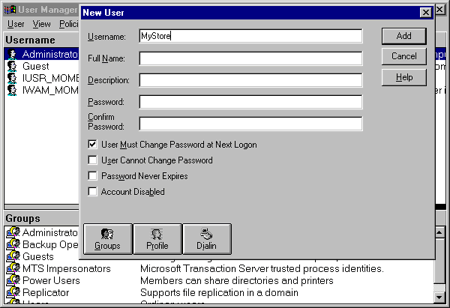
- Enter the username and password for the merchant. Fill in the other fields according to the policies for your server. Click Add, then click Close.
- Select the new user from the Username list in the User Manager. Click the Policies menu, then click User Rights.
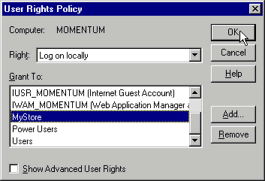
- In the User Rights Policy dialog box, click the pull-down Rights menu and select Log on locally. Click the Add button on the right side of the screen to open the Add Users and Groups dialog box.

- Click the Show Users button in the middle of the dialog box. From the Names list, select the new merchant account, and then click the Add button. Click the OK button at the bottom of the dialog box.

- The merchant's user account should now be listed in the Grant To box of the User Rights Policy dialog box (you may have to scroll the list to see it). Click the OK button.
- Close the User Manager.
All merchant accounts must be in a "ShopSite" group.
- Open the User Manager by clicking
Start®
Programs®
Administrative Tools®
User Manager for Domains.
- Click the User menu, then click New Local Group.
- Enter "ShopSite" as the Group name (without the quotes).
- Click the Add button.
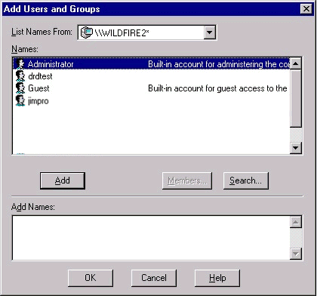
- In the Add Users and Groups screen, scroll down in the list and double-click on the merchant account that you just created, then click the Add button. Click OK at the bottom of the screen.
- Back on the New Local Group screen, verify that the merchant account name appears in the list of members, then click OK.
