Use the Images features to upload and manage the graphic images and other media files that are used in your store. The following functions are available in the Images section:
Directories
The Directories list shows your store’s media directory and all its subdirectories. The buttons on the right of the Directories list allow you to manage and navigate those directories so that you can put your images in subdirectories, if desired.
|
View |
Select a directory from the Directories list and click View to see the contents of that directory in the Images list. |
Create |
Select a directory from the Directories list and click Create to create a new subdirectory under the one you selected. |
|
Select a directory from the Directories list and click Rename to change the name of the directory. If you are using images from that directory, you will have to update the directory name wherever you have used those images. |
|
Select an empty directory from the Directories list and click Delete to remove that directory. You cannot delete the media directory, and you cannot delete a directory that contains images. |
Images
The Images list shows all of the images in the currently selected directory.
|
View Images |
Select one or more images from those listed ( to select more than one). Then click View Images to view them exactly as they will appear in your store. |
|
After selecting one or more images, click this button to change how the image is displayed. You can add an alternate image name (the name of the image is the default), scale the image to a certain size by adjusting height and width tags or hspace and vspace tags, or assign it values necessary for advanced applications, such as hi res / lo res and .
Note: |
You edit image attributes by making changes to the HTML tag that calls the image. You should do this only if you are familiar with HTML tags for images.
|
|
Reset Image Attributes |
ShopSite stores data about images, like the height and width of the image. If you use FTP to upload new files to the media directory, or make changes to an image after you have used it in your store, you will need to highlight the file or files in the list and click Reset Image Attributes, which will recalculate the image height and width. After uploading several graphics via FTP, you can highlight all the new files and reset their attributes. It won't take long, and it won't hurt to do them all.
If you have used the Edit Image Attributtes feature to add information for a particular image, selecting that image and clicking Reset Image Attributes will remove your changes.
|
|
Select one or more images from those listed ( to select more than one). Then click the Delete Images button to erase those images from your media directory. |
|
Copy an image file or other media file from your local computer for use in your store. |
Image Selection
The Image Selection options define how you will select images for use in your store.
Your choice does not affect what your customers see, but only how you work with images in the back office of your store.
If you have thousands of images in your store, your back office pages will display faster if you select images from a pop-up window.
|
From a drop-down list |
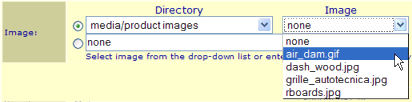
The directories and images in your store’s media directory are displayed in two drop-down lists. You select a directory in the first list, and an image from that directory in the second list, which might look like this:
|
From a pop-up window |
Wherever you can select an image in the back office, ShopSite displays a Select button. When you click that button, a smaller Select Image window will open in front of the ShopSite window. The Select Image window lists directories and images similar to the Images screen, like this:
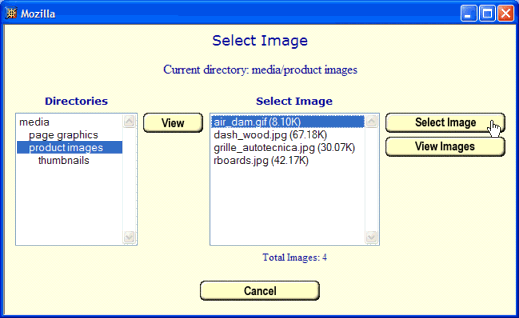
Navigate to the desired directory, click on an image, and then click Select Image to use that image in your store.
|
