Product Layout Info
The fields in this section control how the product appears on the page in your store , such as controlling what information is shown and the style and size of fonts .
Template
There are several templates that determine how product information will be displayed on the pages. For a detailed description of these templates, see the Product Templates help.
Toggles
Here you can choose which product information you would like to display on the page. By default, the product name, price, graphic, and Add to Cart button are all displayed, and the SKU is recorded but not displayed. If you are using the More Info Pages feature, it can be effective to display only the product name and/or graphic, and display the rest of the information on the more info page.
Note: |
The On Sale Toggle causes the sale price to display or not display, thus putting the product on sale or leaving it at the regular price.
|
Display Order Quantity
Check this box to have ShopSite display a quantity box for this product on your store’s pages. Quantity boxes appear for all products on the order form, but checking this box will also display a Quantity box on the store’s pages.
Display Ordering Options
Check this box if you have defined ordering options for this product and want those options to be displayed on the store’s pages as well as on the order form. Ordering options are always displayed on the order form, but checking this box will also display them on the store’s pages.
Style/Size
You can choose to display the product name, price, SKU, and description in different styles and sizes. Choose between plain, bold, italic, and typewriter styles, and between small, normal, and large sizes for each.
Image Alignment
For advanced users, product images can be displayed aligned to the center or to the right, in addition to the default left alignment.
Text Wrap
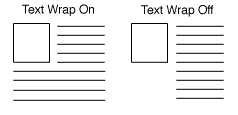
If this option is set to "on" and you have both text and a graphic for your product, the text will wrap around under the graphic, otherwise, it will continue in a straight column. You only need to enable this feature if your product description contains a lot of text.