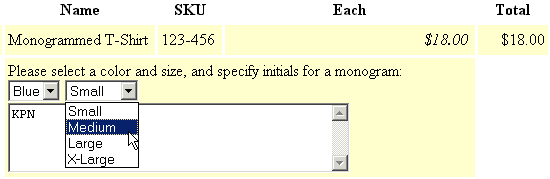
Here is an example of how ordering options are displayed on the shopping cart screen:
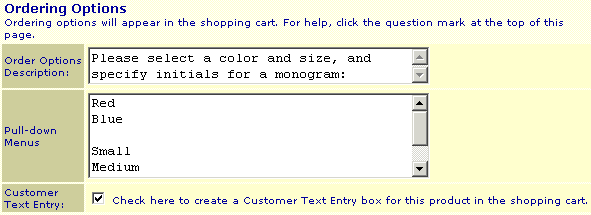
Screen: ShopSite > Products > Edit Product Info
The ordering options feature allows customers to specify options for a product, such as color and size. The options choices can appear with the product listing in your store and on the order form, or just on the order form. The customer's choices will appear with the report of the sale in the e-mail notification and in the Orders section of ShopSite.
You can even use Ordering Options to charge different prices for variations on a product. For example, you can set the Ordering Options for a sweatshirt so that an XXL is $2.00 more than the other sizes. Read the rest of this page, then read Order Option Pricing for more information.
Here is an example of how ordering options are displayed on the shopping cart screen:
|
ShopSite Help and Resource Center February 6, 2002 Give Feedback |
 Copyright © ShopSite, Inc. http://www.shopsite.com |