Payment Methods Accepted
Use this section to configure what sources of funds you are willing to accept payments from. In order to accept payments using any method, you must have a merchant account or account with the individual service which allows you to process the payments. You may want to configure a real-time payment gateway before deciding what payment methods you will accept.
Credit Cards
In order to process credit card payments on your Website, you must have a compatible Merchant Account.
| Authorize.Net SIM | Select this option from the drop-down menu then click Configure to accept payments using the Authorize.Net SIM payment service. Customers who select to pay using credit card will be taken to the Authorize.Net website, where they can enter their payment information. |
| PayPal Payments Advanced | Select this option from the drop-down menu then click Configure to process payments in real-time using PayPal Payments Advanced. |
Human Validation
If you are having trouble with bots (automatic scripts) testing stolen credit card numbers on your site, you can use this feature to verify that the form is being completed by a real, human customer. Based on your settings, ShopSite can create an image with random numbers in it. The customer will be required to enter those numbers into the form to continue the checkout process. Because of the way the image is generated, bots are unable to read the numbers, and therefore are unable to test the stolen credit cards using your shopping cart.
- Off - never display a human validation image.
- Always On - always display a human validation image.
- On, but only after the number of failed attempts has been reached - Specify a Failed Attempts Limit. If a customer submits bad payment information the specified number of times, ShopSite will display a human validation image for any further attempts to submit payment information by that customer.
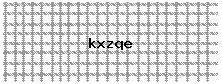
- Basic - Basic CAPTCHA
uses a simple crosshatch over the passphrase. Here's an
example:
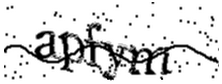
- Advanced - Advanced
CAPTCHA uses an unlevel text with distracting
decorations. Here's an example:
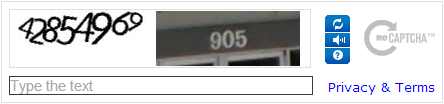
- reCAPTCHA (by Google) -
reCAPTCHA uses a combination of unlevel text and an
image of additional text that it hasn't identified yet.
The user inputs both entries separated by a space. It
also has controls to get new challenges. Here's an
example:
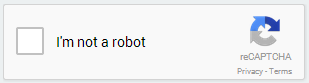
- reCAPTCHA v2 (by Google)
- reCAPTCHA v2 uses a simple check box. The user clicks
the box labeled "I'm not a robot" and the CAPTCHA
determines whether or not it needs to display some text
for input. This method requires the merchant to register
their domain with Google. Here's an example:
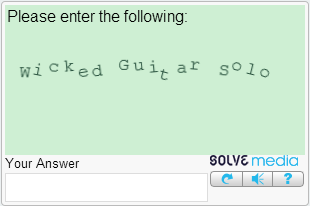
- TYPE-IN (by Solvemedia) -
TYPE-IN uses an unlevel phrase (often a catchphrase or
tagline for a popular product). It also has controls to
get new challenges. Here's an example:
You can click the Test button for any of the CAPTCHA options to get a preview of that CAPTCHA.
