Screen: ShopSite > Preferences > Page Settings
Use this screen to create a standard header or footer to appear on Store Pages and More Info Pages. You might want to include links to important documents, or your e-mail address, phone number, or copyright information. If you are familiar with HTML, you can even create a graphical navigation bar.
You can select whether or not to include the header and footer for individual pages on the Edit Page Layout screen, and whether or not to include the header and footer on product More Information Pages on the More Info Page settings screen.
Header |
Enter the text or HTML to display at the top of Store Pages and product More Information Pages.
This field supports use of the HTML Editor. |
Footer |
Enter the text or HTML to display at the bottom of Store Pages and product More Information Pages.
This field supports use of the HTML Editor. |
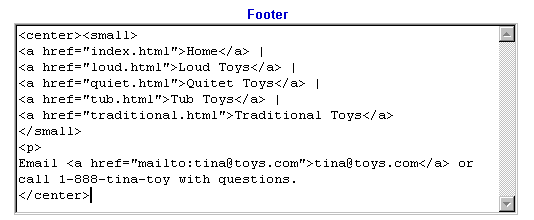
Below is an example of putting a simple store navigation bar in the footer. To do this, you must set the File Name field for all pages in your store, so that you can use those file names in the links for the navigation bar.
Enter the following text and HTML into the footer section
and the text comes out looking like this, with the red and blue text being hotlinks:

This is an example of a footer containing contact and copyright information.
You can view and copy the source code for this footer by using the View Source function of your browser. You can include the copyright symbol (©) by typing © or © in the footer text.
|
ShopSite Help and Resource Center Last updated: October 15, 2008 Give Feedback |
 © 2009 ShopSite, Inc. ShopSite Shopping Cart Software |